Your MCP Spam Filtering details are accessed
via the Spam filtering tab
on the main MCP page:
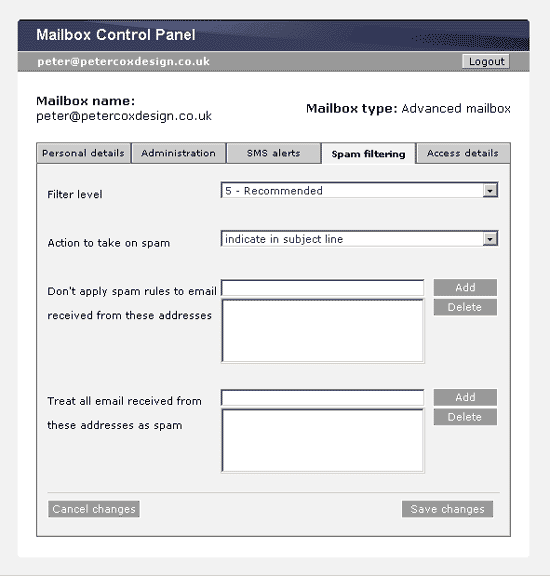
1. Select
the Spam filtering level that
you require within a range of 1 – 15 (Strong to weak).
Spam email is usually quite easy to tell apart
from legitimate email that you want to receive. Spam filters scan
each message to check for words, phrases and technical details
that are usually found in spam. The spam filter gives each email
a score, depending on how many spam-like features it finds. Any
email that scores too highly will be filtered.
When you set the sensitivity of your spam filter,
you are choosing the lowest spam score that an email can have
before it is filtered. For example, if you set filter level to
5 and an email scores 6, it will be filtered. If an email scored
4, you would receive it as normal.
2. Decide
upon the action to be taken with a message identified as Spam:
delete it or mark it as 'SPAM'.
It is recommended that you experiment with
filter strength settings to identify the best setting for your
circumstances. We recommend you use filter level 5, at first,
and set the filter to indicate if an email is spam in the subject
line. This way, you can set up a rule within your email client
to move any emails with 'SPAM' in the subject line into your junk
mail folder, enabling you to monitor the effectiveness of the
spam filter.
If you chose 'Delete' spam, there is no absolute
guarantee that a legitimate message will not be deleted.
3. You can
minimise the risk of this happening by creating a 'white' list
of email addresses that are not filtered; but any new or unknown
address not in your 'white lit' sending a message will be subject
to the server's spam filtering and may be discarded.
4. You can
also create a 'black list' of specific email addresses that you
have identified as originating spam or that you do not wish to
receive mail from.

 PCDS
Home
PCDS
Home