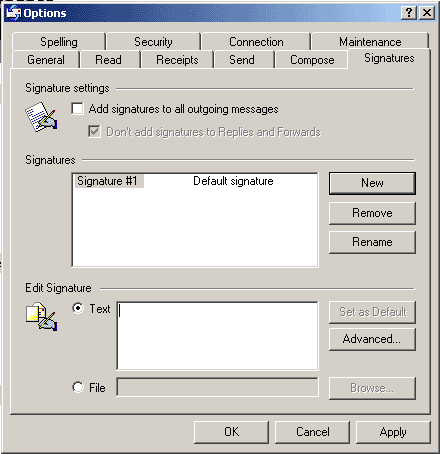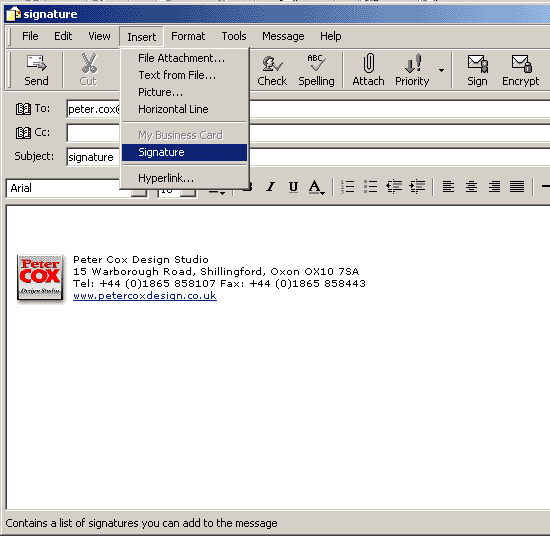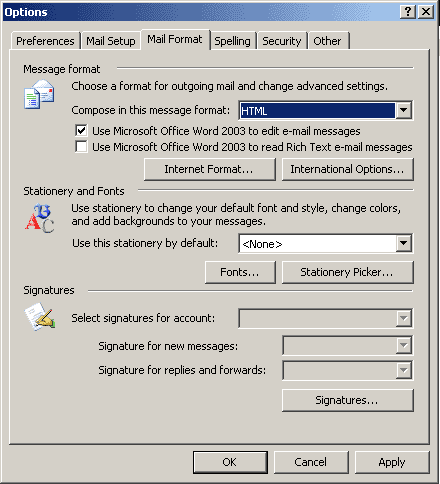
2. Click
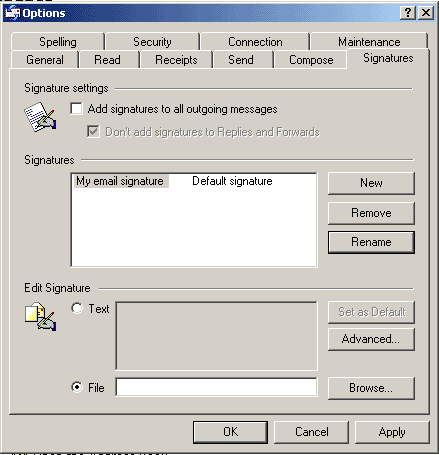
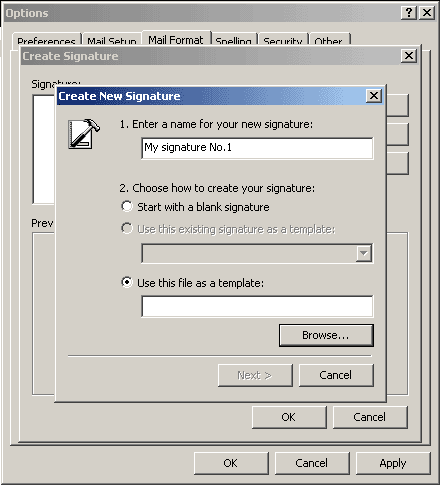
on Signatures... enter a name
for your new signature, click on the Use
this file as a template radio button and then click on
Browse to locate the required
file:
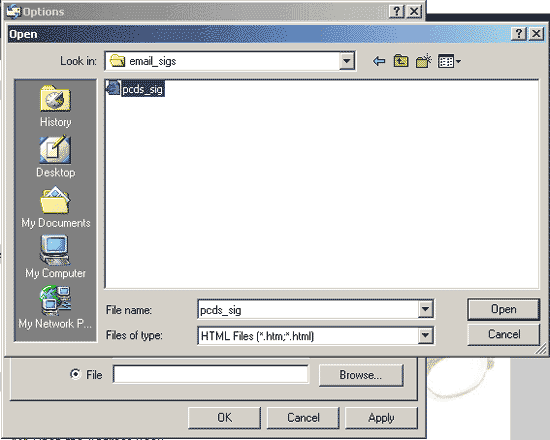
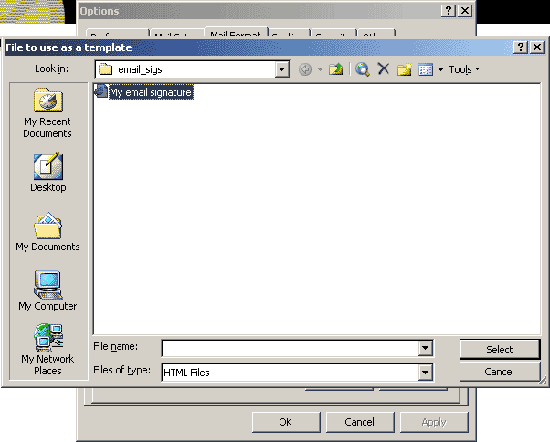
3. Select
the required file.
HINT: You
may need to set the Files of Type
drop-down to show HTML.
NOTE: If
you were provided with a signature .htm file by PCDS then it MUST
be stored – and remain stored – in the exact location
that was specified at the time of supply. If its location is not
as originally specified then any graphics referenced by the signature
file will not be found and the signature will not display correctly.
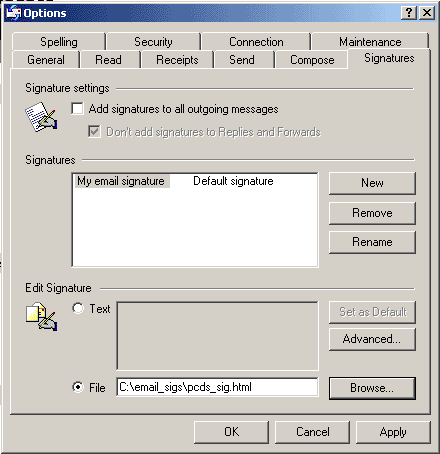
4. Once
you have clicked Select you
should return to this window:
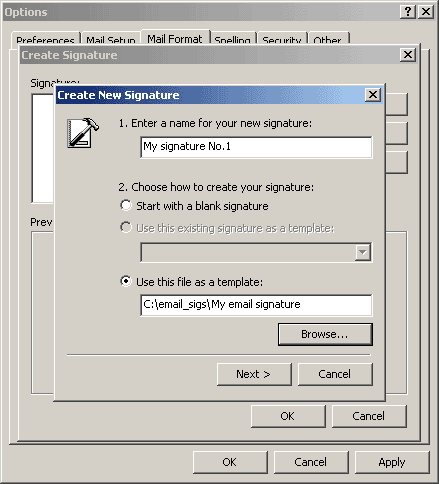
5. Click
Next to advance to the next
Sinature set up window ...
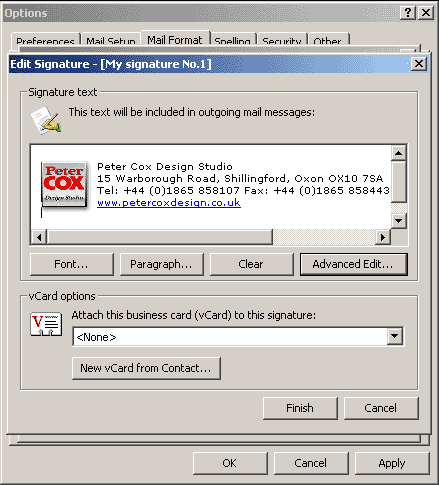
6.
...and click Finish to arrive back at the Create
Signature window:
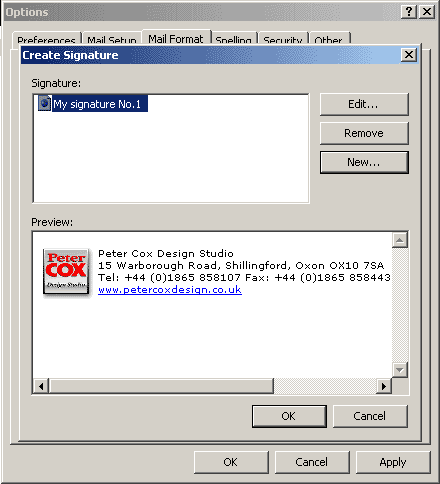
7. Click
OK to close the Create
Signature window, check that your new signature is set
up for your account and click OK
to close the Options window.
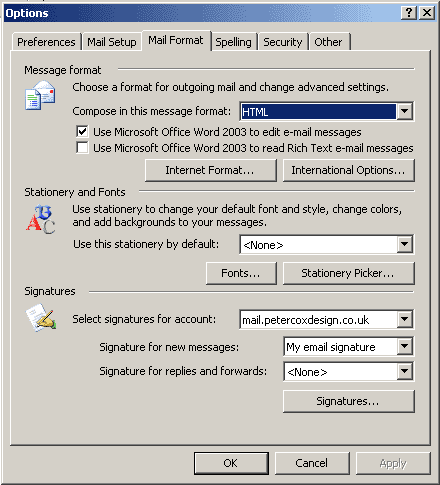
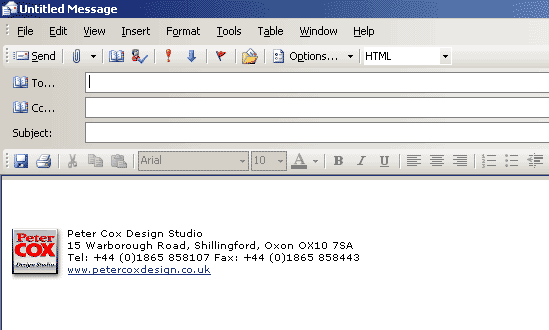
8. When
you create a new email message with this account, your new signature
should already be placed on the page.
 Top of page
Top of Outlook section
Top of page
Top of Outlook section

 PCDS
Home
PCDS
Home